
Capture
Photograph or upload the Match Facts → Stats screen.
Read
The scanner extracts the visible score, club names, and both teams' numbers.
Check
Review the values, fix uncertain reads, then save the match.
01 / Open the screen
Finish a match, then open Match Facts → Stats
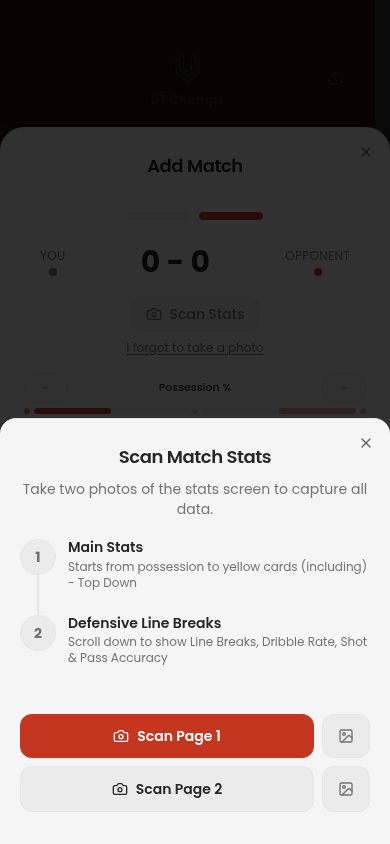
After your EA FC 27 Ultimate Team match, open the post-match Match Facts → Stats screen. It shows your team and the opponent side by side. In UT Champs, add a match to the current run and choose Scan Stats.
There is no EA account connection or automatic gameplay capture. The scanner works from the screenshot or camera image you provide.
02 / Capture page 1
Start with the main stats
Take a clear screenshot of the top of the Stats screen, from possession down through yellow cards. Choose Scan Page 1, or upload the image from your library. Keep both number columns, the stat labels, and the scoreline visible. A sharp, full-resolution image is easier to read than a cropped or blurry photo.
Match Facts · Stats
Good: both columns and labels
Keep the score, stat names, and both teams' numbers inside the image.
Match Facts · Stats
Cropped: opponent values cut off
Retake the screenshot without trimming the right edge or scoreline.
Match Facts · Stats
Unclear: a number cannot be read
Use a sharper image. If a value is still uncertain, correct it in the match form before saving.
Main screen
Possession, shots, expected goals (xG), passes, tackles, interceptions, saves, set pieces, fouls and cards, when visible.
What is read
The left and right values, score, team names, and a confidence level for each extracted stat.
03 / Capture page 2
Scroll down for the advanced stats
On the same Stats screen, scroll down and take a second screenshot. Page 2 can add defensive line breaks, dribble success, shot accuracy, and pass accuracy. It is optional: you can finish with Page 1, but fewer recorded fields mean less detail in later comparisons and coaching.
UT Champs merges the two reads. If a number appears on both pages and they disagree, it asks which page to keep. If Page 2 has no new advanced stats, the app asks you to try again.
04 / Verify
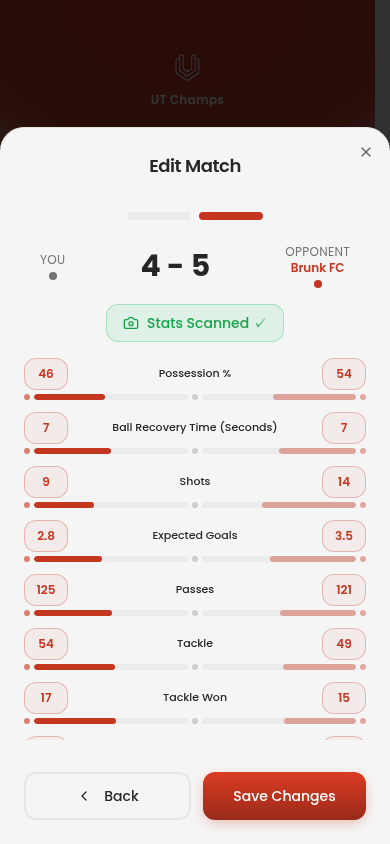
Check your side, score, and every uncertain value
The app tries to identify your club from its name and the displayed score. If it cannot tell which side is yours, it asks you. You can use Swap sides after scanning if the numbers are reversed. A score mismatch also gets a warning.
The app highlights numbers it could not read clearly. Take a better screenshot or fix the number in the match form. You can also enter stats by hand if you forgot to take a screenshot. Check the numbers before you save.
05 / Get better
Use your stats to get better at EA FC
Save the score and stats to your run. UT Champs can then show how your wins and losses differ. You can also ask AI for a Match Insight after the game: it reads the stats and highlights likely reasons you won or lost. Pick one thing to practise in your next match, then check whether the numbers improve. At the end of your run, the WL review looks across your matches.
There is also a separate Performance View scan for a selected player's screen. It can read player stats, team totals, and visible scorers or assisters; you review that extraction before saving it as well. This scan is a separate, token-based action.
See how coaching uses the stats Learn to read the Current and All-Time dashboardsYour EA login is never needed for scanning. You choose which screenshots to upload, and the image is processed for extraction rather than kept as a match recording. See the privacy policy for data handling details.